


VLC for Android
4.125.53K Reviews
App Specs
- Version
- Varies with Device
- Updated On
- License
- Free
- Downloads
- 500,000,000+
- Developer
- Videolabs
- Categories
- Video Players & Editors
- Platform
- Android
Screenshots
 Analysis by AppCompare
When it comes to watching videos on your phone, VLC for Android is like that trusty friend who always has your back. If you've ever dabbled in the world of video players, you’ve probably heard of VLC. It's been around for ages and for good reason. Let me walk you through why this app is a must-have on your Android device.
Where playback can get stuck
In everyday use, the first surprise is often not a dramatic failure but a small mismatch: a file appears in a folder view but does not show where you expected, or a video opens without the audio or subtitles you had in mind. I find it helps to treat the player as a flexible tool rather than assume every file is organized like a commercial streaming library. Check the file itself and its location before changing a stack of settings.
VLC is made by Videolabs and sits in the video-player and editor category, though its role here is firmly playback. It is free, rated for Everyone, and has a 4.1 average from around 2 million ratings, with over 100 million installs. Those figures suggest a well-established choice, but popularity does not make every playback issue an app problem. A damaged file, an unusual encoding, or an incomplete transfer can still cause trouble in any player.
Guides and Analysis on VLC for Android
One useful habit is to test a troublesome video alongside a file you know plays correctly. If the known-good clip works, the issue is more likely tied to the particular file or its source than to the whole app. If neither plays, check the phone’s available storage and restart the app before digging through advanced options. This simple comparison saves time and keeps troubleshooting focused.
Simplifying Video Playback
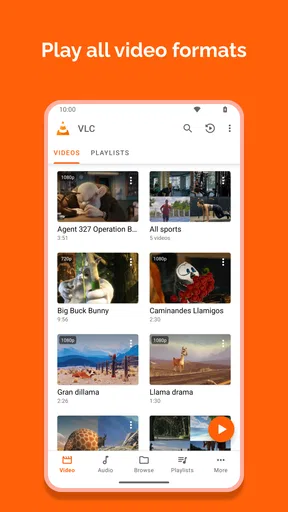
Right off the bat, the thing that stands out about VLC for Android is its ability to handle almost any video format you throw at it. Seriously, it’s like the Swiss Army knife of video players. Whether it's MP4, MKV, AVI, or even some obscure format you haven’t heard of, VLC plays it without a hitch. No more annoying conversions or additional downloads. It's all seamless.
Setup checks before changing settings
Before blaming playback, I would check the basics in a calm order. Confirm that the file has finished copying, that it opens from its current location, and that the volume is not muted either in the player or on the phone. If the image is visible but the sound is missing, try another file first; that helps distinguish a file-specific audio track issue from a broader device problem. If a video is silent in multiple apps, the player may not be the cause.
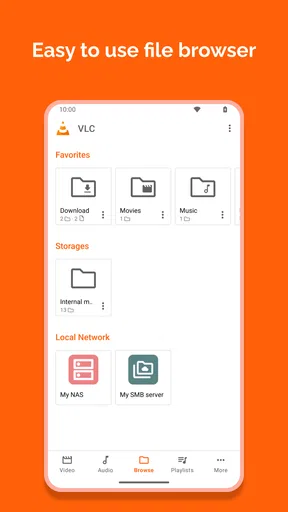
For a new user, the library can feel less tidy than a subscription service because personal files do not arrive with curated artwork and predictable naming. A practical fix is to keep videos in folders that make sense to you, then browse by location when the library view is confusing. I also avoid renaming files while they are being copied or played; finishing the transfer first reduces the chance of testing an incomplete item.
Worth Reading Before You Choose

Basketball Stars: Multiplayer Is Fast, but Can It Recover When Matches Go Wrong?

WEBTOON Turns Phone Updates Into a Better Reading Routine

Link to Windows Runs on Shared Habits, Not Social Feeds

How Alibaba.com Dominates the B2B Marketplace

Metro's Quiet Rise: Redefining Mobile Communication

Harnessing Ecosystem Power with Phone Tracker by Number
Subtitles need a little preparation, too. If a file has several subtitle tracks, look through the playback controls rather than assume the first one is the right language. When a separate subtitle file is involved, keeping it near the video and giving the pair clear, matching names is a sensible starting point. If timing or characters look wrong, check whether the subtitle file itself is the source before repeatedly changing player preferences.
Features That Make Life Easier
Now, I know what you’re thinking: "What else can it do?" Well, buckle up because VLC is loaded with features. You can stream videos from your local network or even from the internet. If you've got a massive video collection stored on your computer, you can easily play them on your phone without transferring them. Pretty neat, right?
That network option is especially useful at home when I want to watch a larger file on the phone but would rather leave it on the computer. The trade-off is that streaming depends on the connection and on the source being reachable; it is not a dependable substitute for offline playback when you are about to leave Wi-Fi. I would test a network stream while at home, then save a local copy for a commute if the video matters.
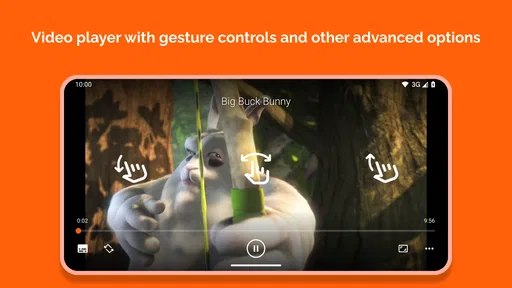
Another thing I love is the gesture controls. Want to adjust the volume or brightness? Just swipe your screen. It’s intuitive and feels natural. Plus, you can customize the app’s look to suit your style. Dark mode, anyone?
Gestures are handy once they become familiar, but they can also cause accidental changes when you are holding the phone one-handed or passing it to someone else. If a picture suddenly looks dim or the volume changes, check for an unintended swipe before assuming the video has changed. For a long watch, I find it easier to settle the screen orientation and playback position first, then avoid touching the display except when needed.
A realistic use case is a train ride with a video saved before leaving home. I can check that it opens, confirm the sound, and pick the right subtitle track while still on a stable connection; later, the trip does not depend on a network stream loading at the wrong moment. That small preparation is more valuable than exploring every option in advance.
Audio Performance
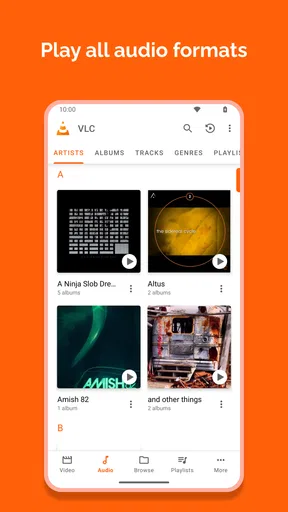
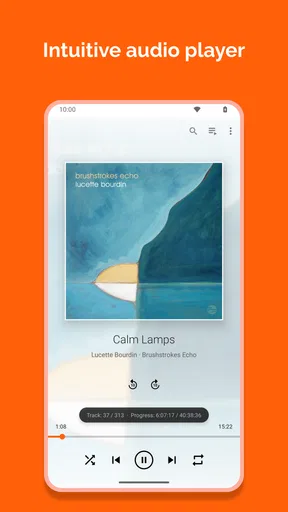
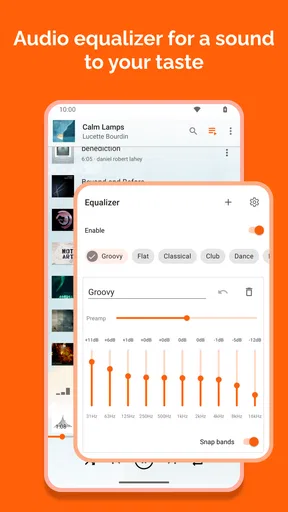
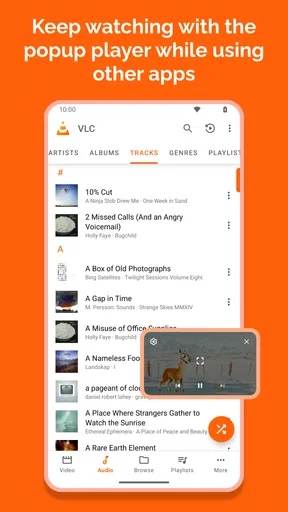
Let’s not forget VLC’s prowess in the audio department. Whether you're listening to music or an audiobook, the sound quality is top-notch. The equalizer lets you tweak the sound to your liking. And if you're one of those who loves podcasts or audiobooks, VLC supports those too.
For listening, the useful distinction is between a player for personal files and a service built around discovery. VLC makes sense when the audio is already on your phone or available from a source you can access; it is less suited to someone who wants recommendations, synced queues, or a ready-made podcast catalog. I would also keep spoken-word listening simple: choose a comfortable level and avoid aggressive equalizer changes, which can make voices tiring rather than clearer.
If you switch between music and video, remember that a sound adjustment that suits one track may not suit the next. I treat equalizer changes as optional fine-tuning, not a fix for every quiet or muddy recording. Testing the same passage with the adjustment on and off is a quick way to tell whether the change actually helps.
Offline Access
If you're often on the move or in areas with spotty internet, having offline access to your videos is a godsend. With VLC, you can download or save content directly to your device and enjoy it anytime, anywhere. No internet, no problem.
For reliability, I would verify that a video is truly stored on the phone and plays before setting out; seeing a file name in a list is not the same as checking the full playback. Keep an eye on available storage when collecting large media files, and remove items you no longer need rather than letting a travel folder grow without a plan. This is a straightforward workflow, not a reason to fill the device with duplicates.
This is also where VLC differs from the usual streaming alternatives. A streaming app is often simpler when you want licensed shows, curated recommendations, and a download button tied to its own catalog. VLC is more useful for personal media and files from different sources, without asking you to organize your viewing around one service. The choice depends on what you watch: a broad personal library favors VLC, while a polished catalog experience favors a dedicated streaming app.
One thing you might want to note is that while VLC is user-friendly, it can be a bit overwhelming at first with all the settings and options. But once you get the hang of it, it's smooth sailing.
When something stops working, I would recover in small steps instead of changing everything at once: close and reopen the player, retry the file, then compare it with another known-good item. For a network stream, check that the phone and source are still connected to the same reachable network and try again later if the source has gone offline. For a local file, confirm it still opens from its folder. Changing one thing at a time makes it easier to undo an unhelpful adjustment.
It is also worth separating playback from the device’s wider behavior. If other apps cannot access the same media, the file location or phone storage may be involved. If only one clip fails, the clip itself is the stronger suspect. And if video plays but sound does not, checking the phone’s audio output and testing another track is more useful than immediately reinstalling the player. These checks are basic, but they prevent a lot of unnecessary troubleshooting.
Who will get the most from it
I would recommend VLC to someone who keeps films, lessons, downloaded clips, music, or spoken recordings as files and wants one familiar place to play them. It is especially practical for people moving between formats or watching content they already own, and for anyone who sometimes needs local playback away from a reliable connection. Its open-source roots and no-cost access add to the appeal for users who prefer a straightforward general-purpose tool.
I would steer a different person toward another option if their main goal is browsing a polished entertainment catalog, receiving personalized recommendations, or managing a podcast subscription workflow. A phone’s built-in player may also be enough if it already opens every format that person uses and they rarely need network playback or audio controls. VLC’s flexibility is most valuable when there is a real variety of files; otherwise, its extra settings can feel like clutter.
VLC for Android arrived on February 4, 2015, and its long presence has made it a familiar name among mobile media players. The key practical question is not whether it has the most options, but whether those options solve a problem you actually have. For a mixed personal library, they often do; for a single, neatly supported format, a simpler player may feel more effortless.
Final Thoughts
So, is VLC for Android worth downloading? Absolutely. It’s free, ad-free, and open-source. It’s like the trifecta of awesome in the app world. If you want an all-in-one media player that’s reliable and versatile, VLC should be your go-to. Trust me, you won’t look back.
Pros
- Supports a wide range of media formats.
- Free and open-source
- no ads.
- Customizable interface options.
- Network streaming capability.
- Offline playback available.
Cons
- Interface can be confusing for beginners.
- Occasional performance lags.
- Limited advanced editing features.
- Some features hidden in menus.
- No built-in media content library.
FAQs for VLC for Android
What features does VLC for Android offer?
VLC for Android is a versatile media player that supports a wide range of audio and video formats, including MKV, MP4, AVI, MOV, Ogg, FLAC, TS, M2TS, and AAC. It also offers features like subtitle support, multi-track audio, and playback controls. Additionally, it supports network streaming and media library organization.
Is VLC for Android free to use?
Yes, VLC for Android is completely free to use. It is an open-source application, meaning there are no hidden costs, subscription fees, or in-app purchases. Users can enjoy all its features without any limitations, making it a popular choice for media playback on Android devices.
Does VLC for Android support subtitles?
VLC for Android fully supports subtitles. Users can load subtitles from files stored on their device or download them directly through the app. It supports various subtitle file formats such as SRT, SSA, and ASS, providing flexibility for users who need subtitles in different languages or styles for their media.
Can VLC for Android stream content from the internet?
Yes, VLC for Android can stream content from the internet. It supports network streaming protocols like HTTP, RTSP, MMS, and more. Users can input a URL to stream video or audio directly from the internet, making it a versatile tool for accessing online media content.
Is VLC for Android safe to download and use?
VLC for Android is generally considered safe to download and use. It is developed by the VideoLAN organization, which is known for its commitment to user privacy and security. However, users should always download it from reputable sources like the Google Play Store to ensure they have the official version.


